How can I customize the Cookie Consent banner design?
You can fully customize the cookie consent banner to match your website's branding from the Appify Commerce dashboard.
note
The Free plan lets you pick one of the pre-designed themes. Colours, text, icons, shadow, hover effects and translations need the Advanced plan.
Customization Options
Banner Style
Choose from 6 pre-designed banner styles to get started quickly, then customize further as needed.
Banner Position
- Bottom Left (default)
- Bottom Right
- Top Left
- Top Right
You can also set a Relative position offset and a Banner Width (use 100% for a full-width bar).
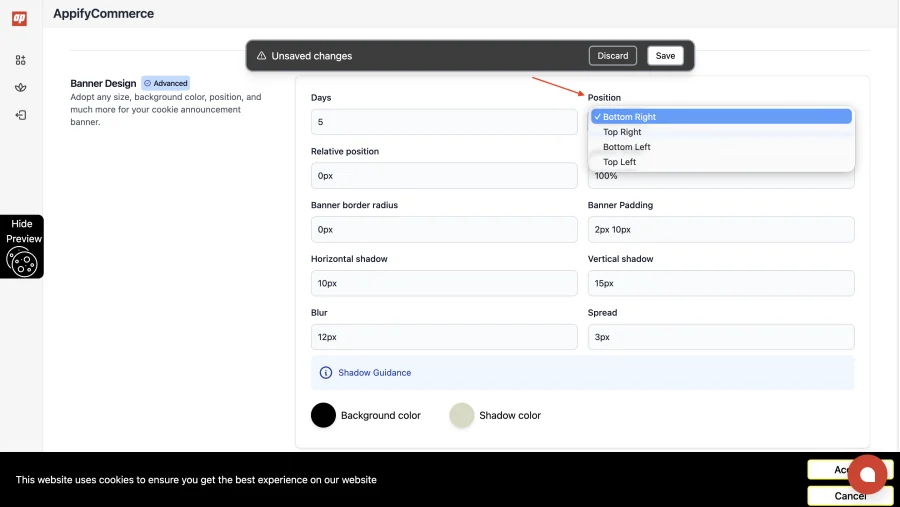
Banner Appearance
- Background color — Set the banner background to match your brand.
- Text color — Adjust the message text color for readability.
- Border radius — Control the roundness of the banner corners.
- Shadow — Set the horizontal and vertical offset, blur, spread and shadow colour.
- Padding — Adjust internal spacing within the banner.
- Width — Set a custom width or use full-width.
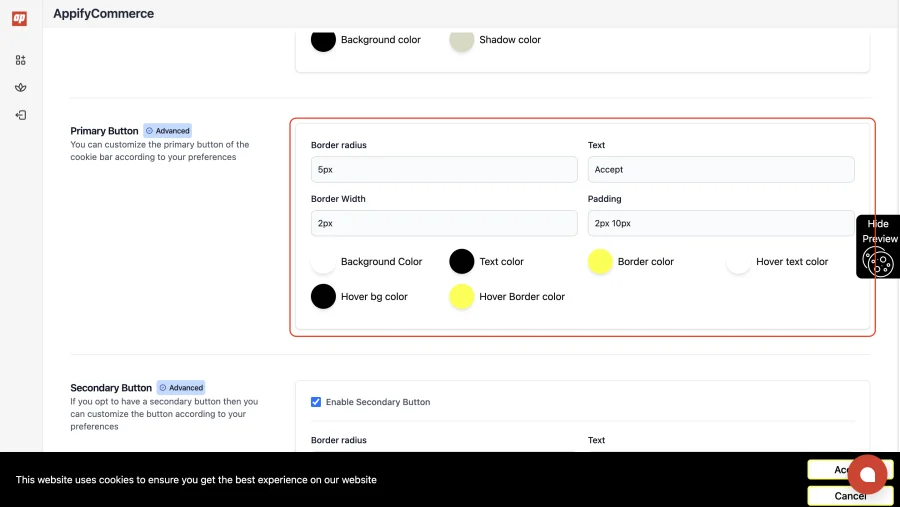
Button Styling
- Primary button (Accept) — Customize the text, border radius and width, padding, and the background, text and border colours, including hover colours.
- Secondary button (Cancel) — Optional, and styled separately from the primary button. It dismisses the banner rather than opening a preferences screen.
- Button direction — Set it to Vertical so the buttons stack and stretch to the full banner width on small screens.
Banner Text
- Edit the consent message displayed to visitors.
- Add a link to your privacy policy within the banner text, with its own Link Url, Link Text and colour.
- Change the Accept and Cancel button labels.
Steps to Customize
- Log in to your Appify Commerce dashboard.
- Go to Cookiefy - Privacy Policy → Apperance.
- Select a base style template and adjust colors, position, text, and buttons.
- Click Save to apply changes.
Changes are reflected on your website immediately.