How can I install and add the FitMagik virtual try-on button to my Shopify product pages?
Installing FitMagik on your Shopify store is quick and requires no coding.
Before you start: FitMagik's try-on button is added as a theme app block, so your store needs an Online Store 2.0 theme — that includes every theme in the Shopify Theme Store. Older vintage themes cannot host app blocks, so the FitMagik block will not appear in your theme editor.
Follow these simple steps:
-
Install the FitMagik app from the Shopify App Store.
-
Open the app — you’ll see the Getting Started checklist on your dashboard.
-
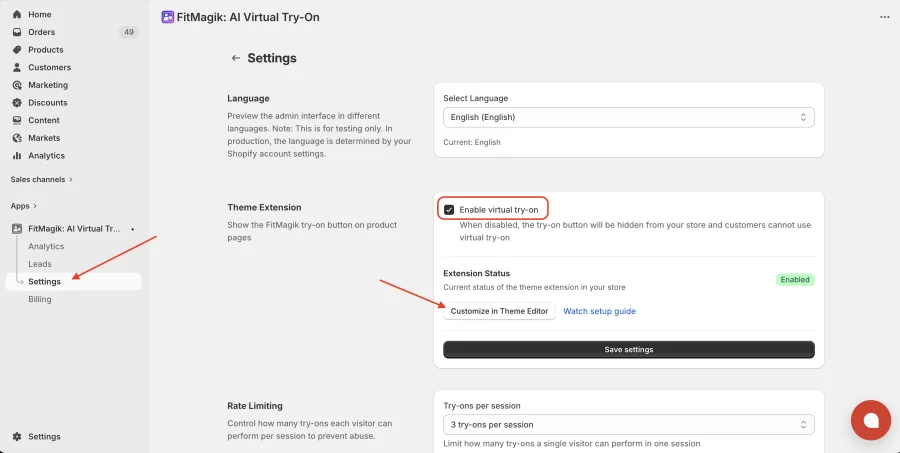
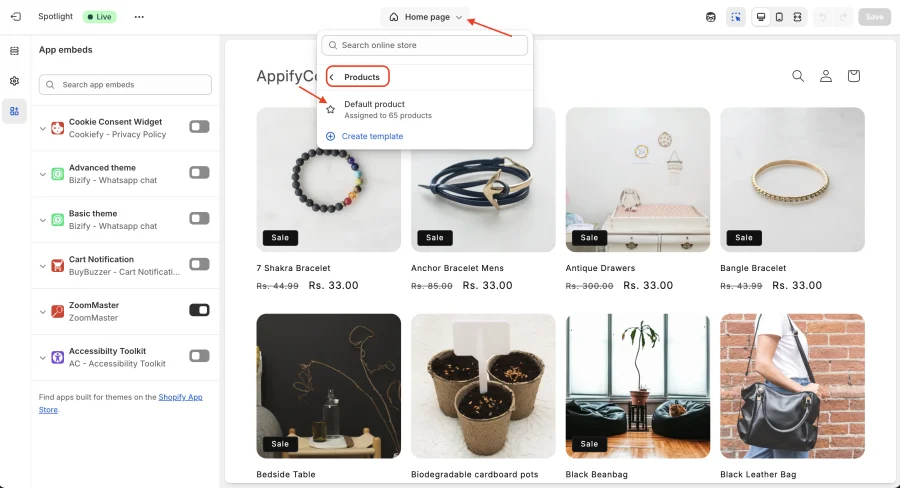
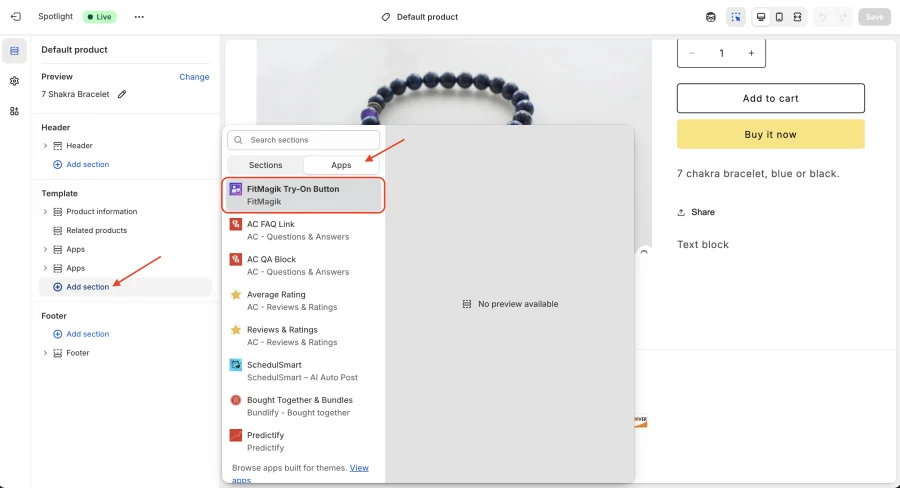
Click the “Add to Theme” button — this opens the Theme Editor with the FitMagik block ready to add.
-
In the Theme Editor, click Save to activate the try-on button.
-
That’s it! Visit any product page on your store to see the “Try It On” button.
Tip: The dashboard automatically detects when you’ve added the block — you’ll see a green checkmark on Step 2 once it’s active.
If your store uses more than one product template, repeat steps 3–4 for each template that should show the try-on button. The dashboard's checkmark appears as soon as the block is on any product template, so it is worth checking a product from each template.
Setup Video
Get FitMagik app for Shopify store from here FitMagik